How to Manually Add Deals Block to Your Product Page
Learn how to manually add the V Bundles Deals Block widget to your Shopify product page using the theme customizer.
Published: January 21, 2026
By default, V Bundles automatically places the Deals Block widget on your product pages. However, if you've disabled automatic placement or want more control over where the widget appears, you can manually add it through Shopify's theme customizer.
When Do You Need to Add It Manually?
You need to manually add the Deals Block if:
- You unchecked "Automatically add to product page" in your Deals Block settings
- The widget is not appearing on your product page
- You want to customize the exact position of the widget
Step-by-Step Guide
Step 1: Open the Theme Customizer
- From your Shopify admin, go to Online Store → Themes
- Find your current theme and click Customize
Step 2: Navigate to a Product Page
- In the theme customizer, click the page dropdown at the top center
- Select Products → Default product (or your custom product template)
Step 3: Add the V Bundles App Block
- In the left sidebar, find the Product information section (or the section where you want to add the widget)
- Click Add block or the + button
- Scroll down to the Apps section
- Select V Bundles - Deals Block
Step 4: Position the Block
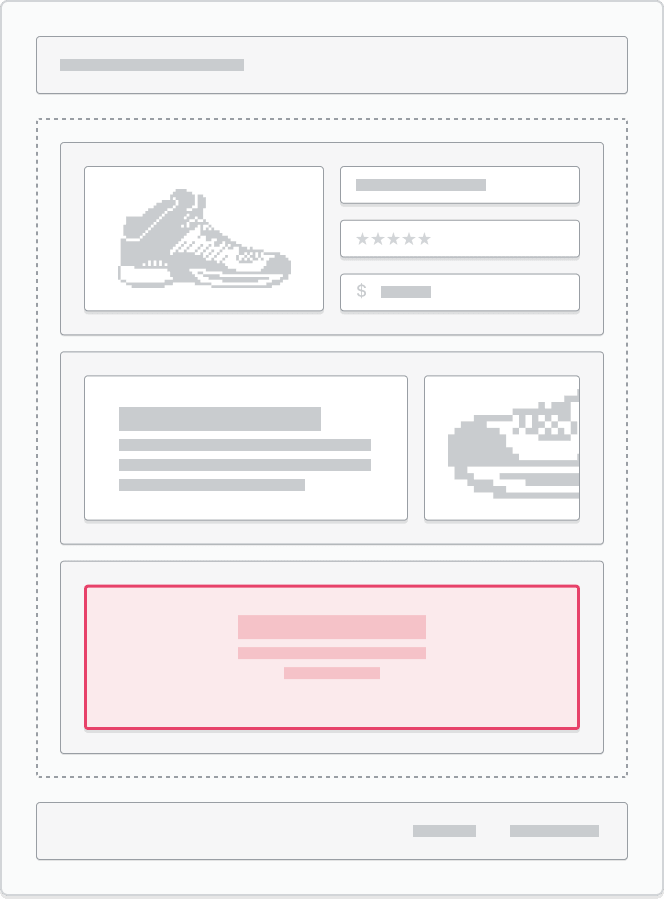
- Drag and drop the V Bundles block to your desired position
- We recommend placing it above the Buy buttons or below the product price for best visibility and conversion
Step 5: Save Your Changes
- Click the Save button in the top right corner
- Your Deals Block will now appear on all product pages that have an active deal configured
Tips for Best Results
- Position matters: Place the Deals Block where customers can see it before making a purchase decision—ideally near the price or add-to-cart button.
- Preview before publishing: Use the theme customizer preview to see how the widget looks on different products.
- Mobile view: Check how the block appears on mobile devices using the device toggle in the customizer.
Troubleshooting
The V Bundles block doesn't appear in the Apps section
Make sure the V Bundles app embed is enabled:
- Go to Online Store → Themes → Customize
- Click on App embeds (at the bottom left of the sidebar)
- Ensure V Bundles is toggled on
The widget shows but no deals appear
- Verify that you have at least one active Deals Block configured in the V Bundles app
- Check that the product visibility settings include the product you're viewing
- Ensure the deal's schedule dates are current (not expired or scheduled for the future)
Need Help?
If you're still having trouble adding the Deals Block to your theme, please contact our support team with a screenshot of your theme customizer, and we'll be happy to assist.
Was this article helpful?
Still need help? Contact support